Google Analytics
Google Analytics (GA) is our chosen standard web analytics tool within SpringerNature. Like Google Tag Manager, GA is evolving in part in response to privacy legislation. The older version still used on most of our websites is called Universal Analytics (GA3), and the new version is called Google Analytics 4 (GA4).
Analytics and consent
Whichever version of analytics you are using, our policy as of January 2021 is that you must seek the active consent from a user before setting an analytics cookie. Analytics cookies cannot be regarded as 'strictly necessary' and set on a first pageview before a user accepts. This has consequences for the visibility of some of our users and results in a loss of data from those who do not consent - that's a consequence that has been accepted by senior management.
In order to restore some visibility of data for those users who do not accept we plan to add support for anonymous cookieless tracking in the future as an advanced option for sites using GA4.
For consent purposes the cookies required by GA are put into category C02, Cookies that measure website use. The standard GA script should not run unless the user has consented to this category either by accepting all cookies or by individually switching on that category.
Properties and Data Streams
In GA360 you create a 'property' which corresponds to a 'website', denoted by a unique property ID which is the key you embed in the page. All data collected with the same property ID collects in this space. Users who want to access only a filtered subset of this data (e.g. minus internal traffic, traffic to only certain parts of the site) can do so by creating a view within the analytics GUI which contains only data matching the filter criteria. From a developer's perspective you just need to know which property ID to include in the page.
For GA4, it's a bit different. Properties still exist, but each property can contain multiple 'data streams'. The thinking behind this seems to be that if you have a website and a mobile app you could consolidate data from the two channels into a single entity, whereas previously you would have used two totally different Google products. For the vast majority of our products, this does not apply.
There are now no views, all users can access all data and need to use segments in the analytics GUI to filter down to subsets.
Setting up a new property and data stream
Note: you will need Admin permissions to apply the steps below
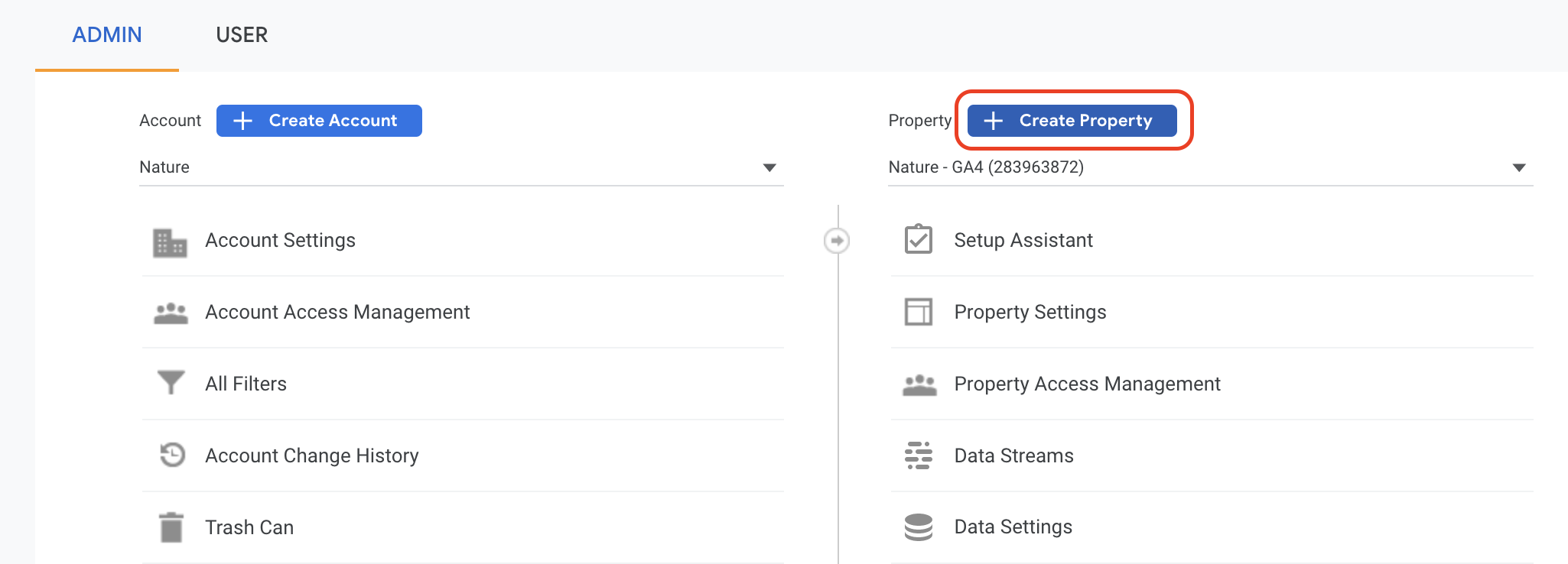
In the existing or new Google Analytics Account, click on button "Create Property" to get started with the setup.
 Insert the property name and make the selections for time zone and currency that will be applied to the property. This selection will be applied to all the data streams created under this property.
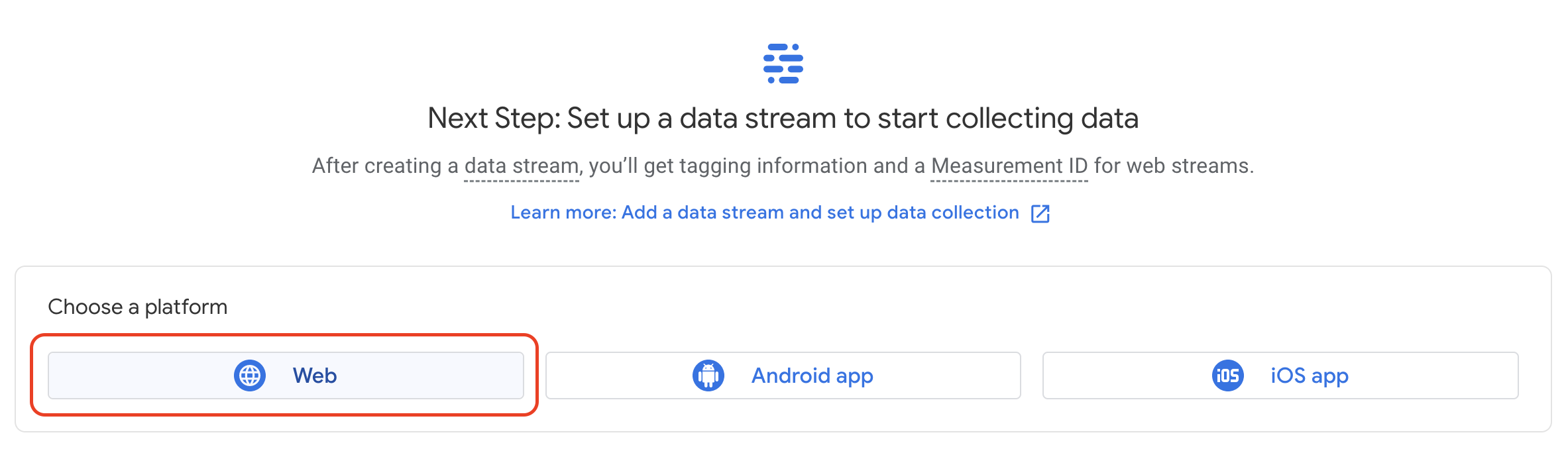
Once the property is created, you will be prompted to setup a data stream. Unless you are working with an iOS or Android App, a single 'Web' stream should be used. Adding multiple streams of the same type can lead to inconsisten results.
Enter the URL of the primary website, e.g. "nature.com", and a stream name, e.g. "Nature".
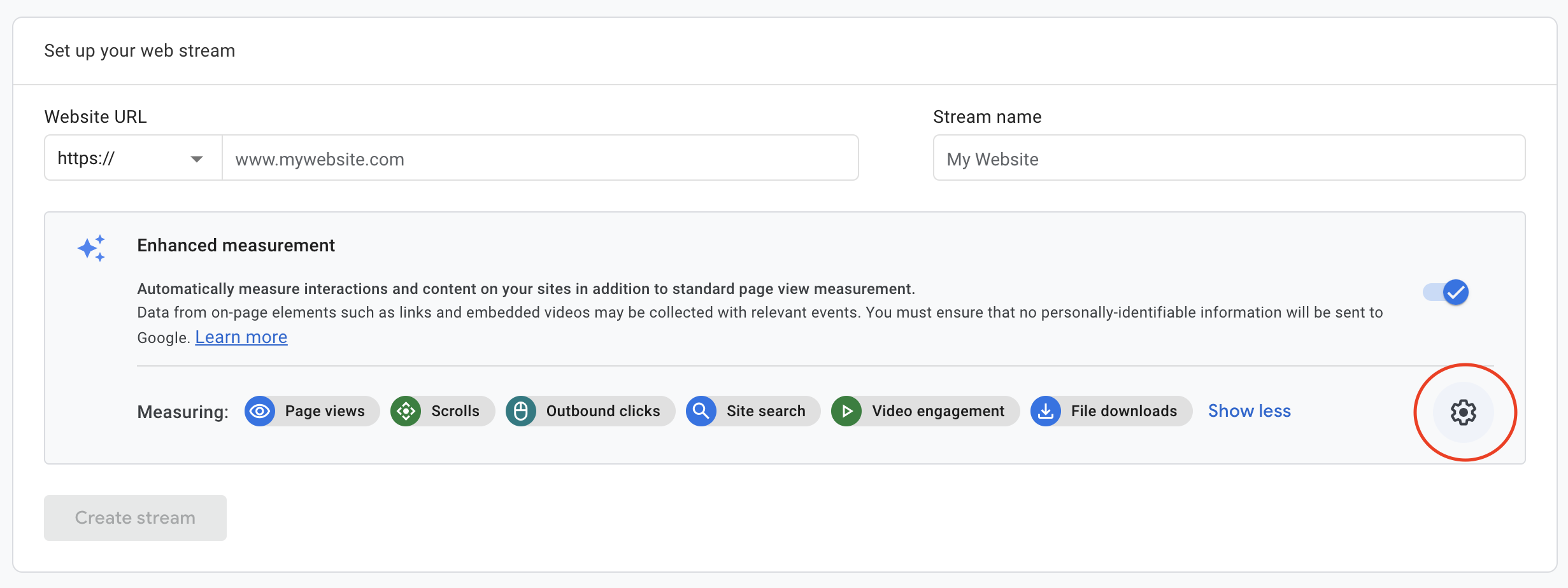
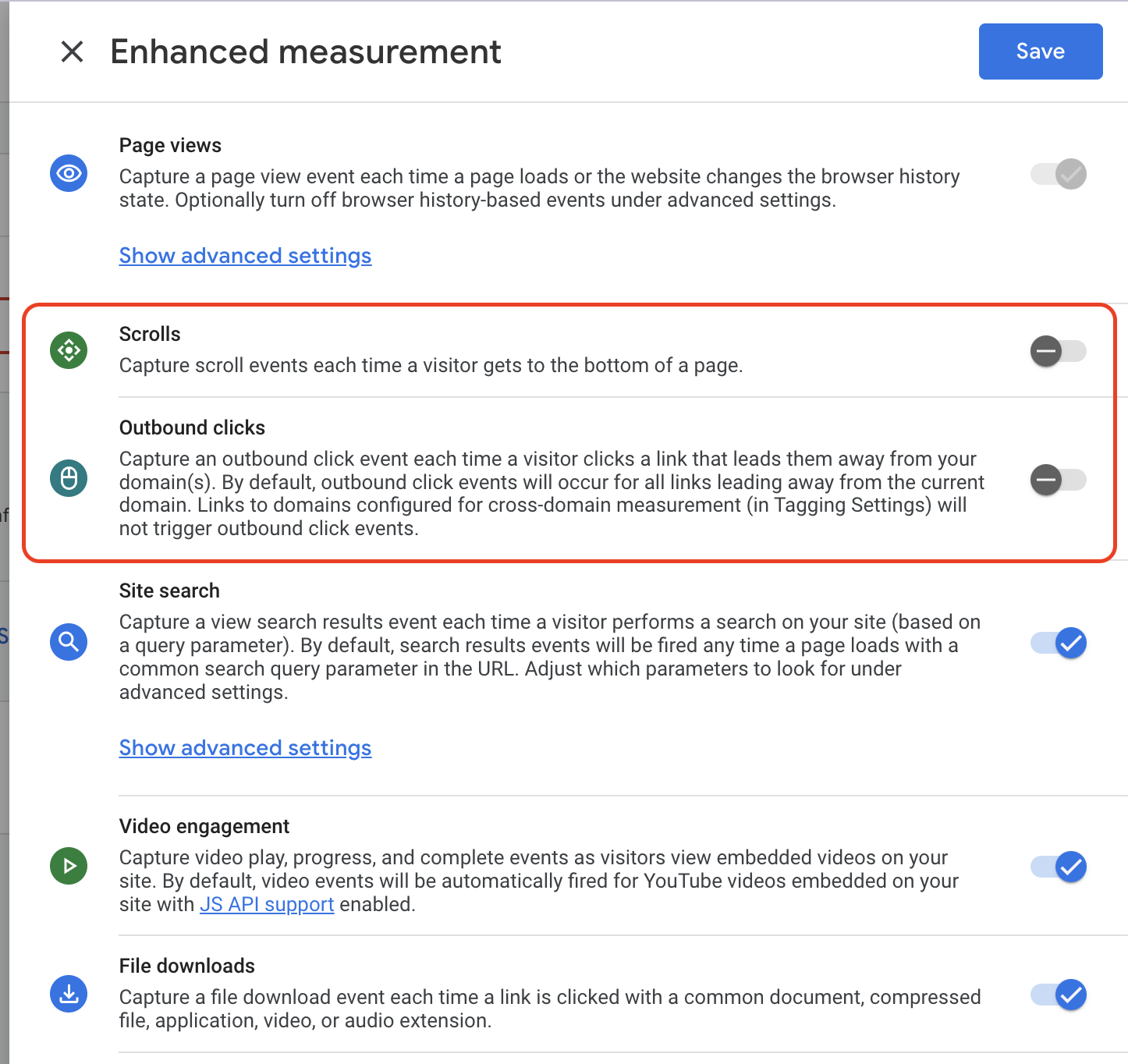
Next, you can setup enhanced measurement events. By default, Google have all enhanced measurements enabled. However, if you are planning to use Google Tag Manager, we strongly suggest switching outbound clicks and scroll off.